Your space
Private to you
Your preferences, memories, Skills, and Wiki stay with your account. I don't get them through my account.
- A writing preference
- Your own plan
- A lesson you want remembered
Start here
You don't need a prompt formula. Tell the AI what you want, the same way you'd tell me, then keep talking until the answer helps.
Your progress on this page stays in this browser.
Plan three easy dinners for this week. We have chicken, eggs, and rice.
I can do that. How many people, and is there anything you don't eat?
Start with a question you care about today.
02Search shared household knowledge in Family space.
03Your private context helps the next chat pick up faster.
The short version
LibreChat is the front door. It can use the right context, a saved method, or a task board when your request needs one.
Where things live
I picked this setup so we can share what belongs to us without mixing it into what belongs only to you.
Your space
Your preferences, memories, Skills, and Wiki stay with your account. I don't get them through my account.
Family space
Household facts and plans can be searched here only by granted family accounts. A name in a prompt doesn't grant access.
Plane boards
Plane holds tasks, owners, and dates. It shows what needs doing. It isn't where long-term memory lives.
Your starting point
Your private assistant and knowledge connection are ready. Plane cannot be finished on your behalf because its access token must come from your own account.
In LibreChat, open Agents and choose Mich’s Everyday Assistant. It can use your private Memory, Skills, and Wiki, and search the shared Family space.
Accept the Family invite in Plane, create your own workspace, then connect both named Plane entries in LibreChat. Lessons 6 and 7 show each step.
Learn by doing
Each lesson uses one real task. Do the first two today. Come back when you want the next one.
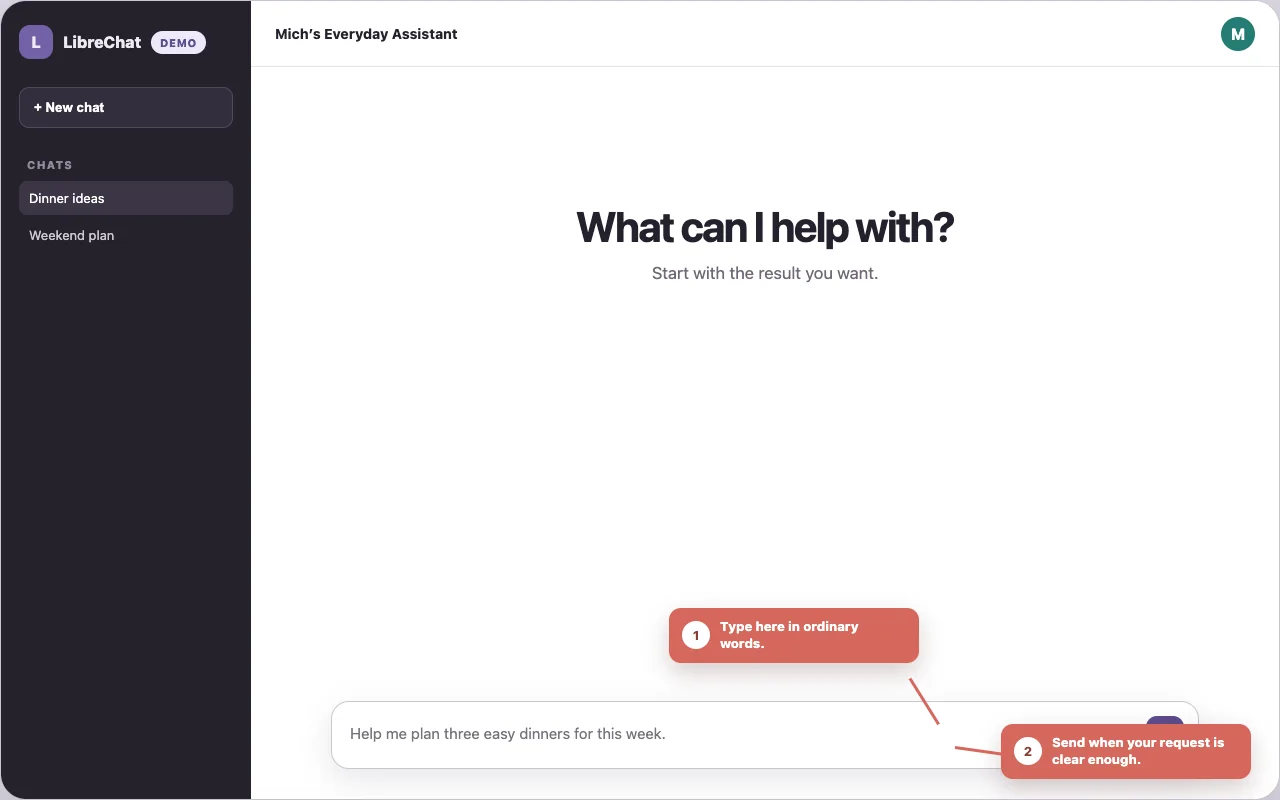
Start with your first chat.
Open LibreChat, choose Mich’s Everyday Assistant from Agents, and ask about something you need today. Don't explain the whole story yet.
Help me plan three easy dinners for this week. Ask me what you need to know first.
Look for: One or two useful questions, followed by a plan you can change.
Stay in the same chat. Correct what doesn't fit, add one limit, then ask for a better version.
Make the dinners suitable for two people, keep each under 30 minutes, and give me one shopping list.
Look for: The answer changes without you repeating the first request.
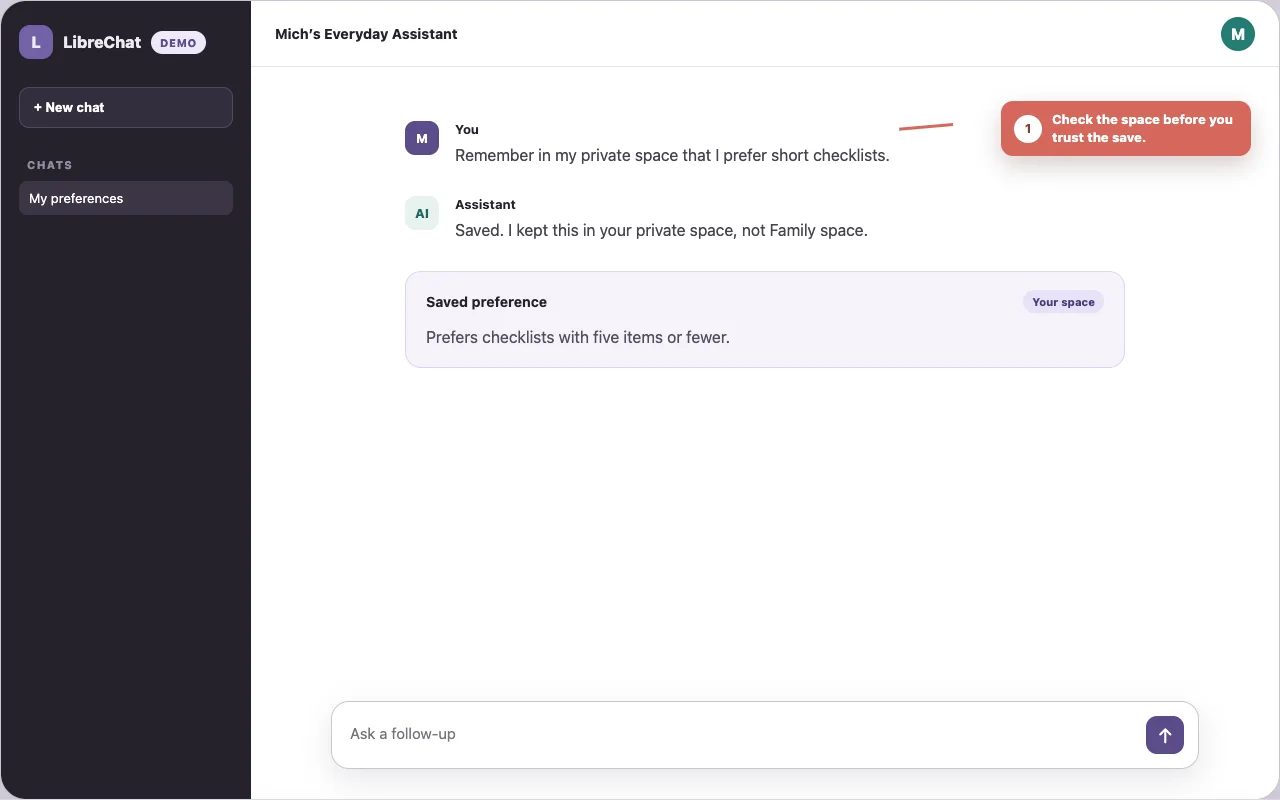
Tell it what you prefer and say this belongs in your private space. Use a harmless preference you won't mind deleting later.
Remember in my private space that I prefer checklists with five items or fewer. Show me the draft and ask before saving.
Check it: Start a new chat and ask, “How do I prefer my checklists?”
Say Family so the assistant uses the shared household grant, then ask it to show the source it read.
Search Family space for “How our AI spaces work”. Read it, then explain where a new item belongs and why. Show me the source you read.
Look for: The shared “How our AI spaces work” page and a reason for the choice. New Family saves are not connected yet, so the assistant should not pretend to save one.
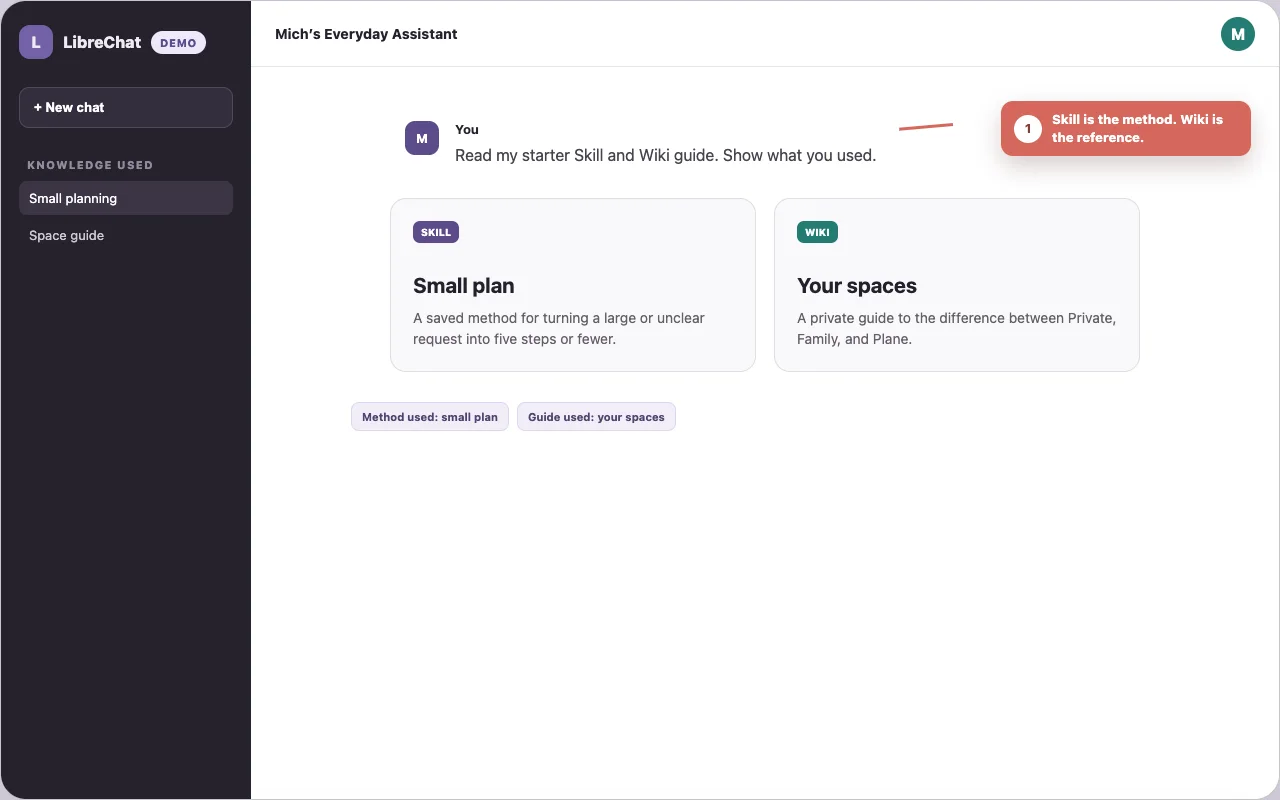
A Skill is a saved way of doing something. The Wiki is the reference shelf. Two private starter records are ready for this lesson.
Read my “Turn a request into a small plan” Skill and my “Private, Family, and Plane” Wiki guide. Explain the difference and show what you used.
Look for: The answer names the method and facts it used instead of pretending it remembered.
Your account and Family access are ready. Ask Daniel for the one-time starter password, sign in as yourself, then choose a new password when Plane asks. The starter password is kept in macOS Keychain, not on this site.
Show me the Family Plane projects I can use. Do not create or change anything.
Look for: The response says Family before it lists the projects.
Your private workspace and both LibreChat connections are ready. You do not need to create a token or paste a secret anywhere.
Show my open tasks from my private Plane workspace. Don't use the Family workspace.
Look for: The response names your private workspace before listing anything.
AI can sound certain and still be wrong. Ask it to check current sources when dates, money, health, travel, or rules matter.
Check this against current primary sources. Link each important claim, tell me what you couldn't confirm, and don't guess.
Look for: Direct links beside the claims and a clear note for anything still unknown.
Plane
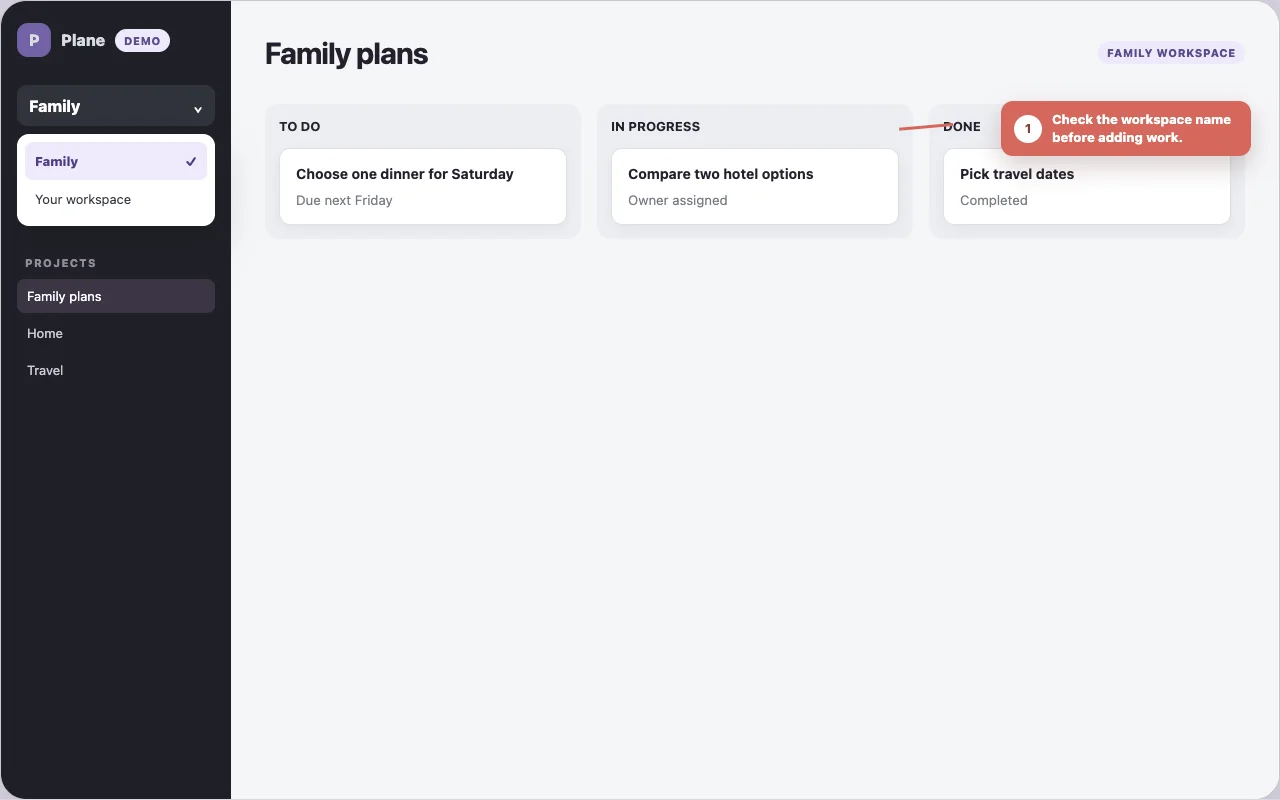
Family is for work we share. Your own workspace is for work that belongs to you.
Travel, home, family dates, and decisions that need an owner or due date.
Example: “Create a Family task to compare two hotels by Sunday.”
Personal plans, learning, and projects that don't belong on the shared board.
Example: “Add this course to my own backlog.”
Check the workspace name in the top left before adding work. Your Family access and private workspace are already ready.
Guided Plane practice
First see the rule. Then connect your account, check the result, and make the choice yourself. You can come back here if anything looks different.
If work needs an owner, date, or progress, use Plane. Choose Family when we share the work. Choose your personal workspace when it belongs only to you.
The technical setup is done. These steps make the account yours.
Ask Daniel for it. It is stored in macOS Keychain and is not written in a chat, this guide, or source code.
Open Plane, enter your own email address, and use the starter password once.
Plane will require a password change. Pick one you have not used anywhere else.
Use the Plane workspace switcher. Family is shared. The other workspace is yours.
Choose Mich’s Everyday Assistant so the ready Plane Family and Plane Personal tools load.
Ask the assistant to show the dinner task in your private workspace. Let it explain which tool and workspace it used.
The connection secret is already stored safely. You should never need to see or paste it. If a chat ever prints a token, stop and tell Daniel so it can be replaced.
A good first check is read-only. It proves which workspace the assistant can see without creating or changing a task.
Before you do anything, tell me which Plane workspace you will use and why. Then show the projects in Family Plane. Do not create or change anything.
Before you do anything, name my personal Plane workspace. Then show its open projects. Do not use Family Plane and do not change anything.
Stop if: The assistant cannot name the workspace, names the wrong one, or asks you to paste the token into chat.
Pick an answer before checking it. The reason matters more than getting all four right the first time.
01
Choose one, then read why.
02
Choose one, then read why.
03
Choose one, then read why.
04
Choose one, then read why.
Pick any card and say why its answer fits. If you can explain the owner, sharing, or future-use reason, you know how to choose without memorising the labels.
Choose one harmless task of your own. Tell the assistant what result you want, name the workspace, and ask it to show the draft before creating anything.
Stop at the first step that does not match your screen.
Ask Daniel for the one-time starter password stored in macOS Keychain. If you already changed it and cannot remember the new one, ask Daniel to reset it. Do not send a password in chat.
Start a fresh chat, choose Mich’s Everyday Assistant again, and repeat the read-only check. If it still fails, tell Daniel. The connections are already stored, so you should not paste a token.
Do not confirm the change. Say: “Stop. Name the Plane connection and workspace you used.” If it is still wrong, tell Daniel instead of editing the connection yourself.
Stop and tell Daniel. He can replace the token and both encrypted connections. You should never need to view, copy, or paste it yourself.
Keep safe
Treat the AI like a capable helper that still needs your judgement.
Don't paste passwords, codes, card details, or private access links into chat.
Say private, Family, Plane, or don't save when it matters.
Ask for current sources when a wrong answer would cost time, money, or health.
Read task titles, dates, owners, and messages before the AI sends or creates anything.
Say what's wrong and what a better answer needs. You won't hurt its feelings.
Ask what was saved, then ask to change or remove it.
Questions
No. Start with your goal. Add details when the first answer shows what's missing.
Not through his LibreChat account. Your account identity gates private knowledge, while Family space is separate and shared. Daniel still administers the self-hosted services, as he does for our other household apps.
Memory holds useful context about you. Skills hold repeatable methods. Wiki holds facts and references that should stay current.
Use Plane when something needs an owner, a date, or visible progress. Keep facts and methods in your knowledge spaces.
Say what looks wrong. Ask it to check primary sources, show its working, and mark anything it couldn't confirm.
Ready when you are
The first chat doesn't need to be clever. It needs to be useful to you.
Open LibreChat and begin